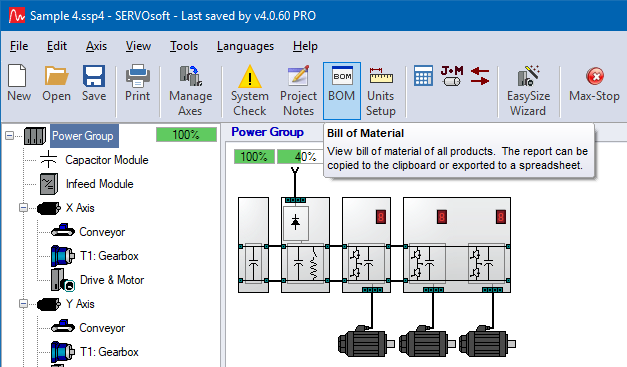
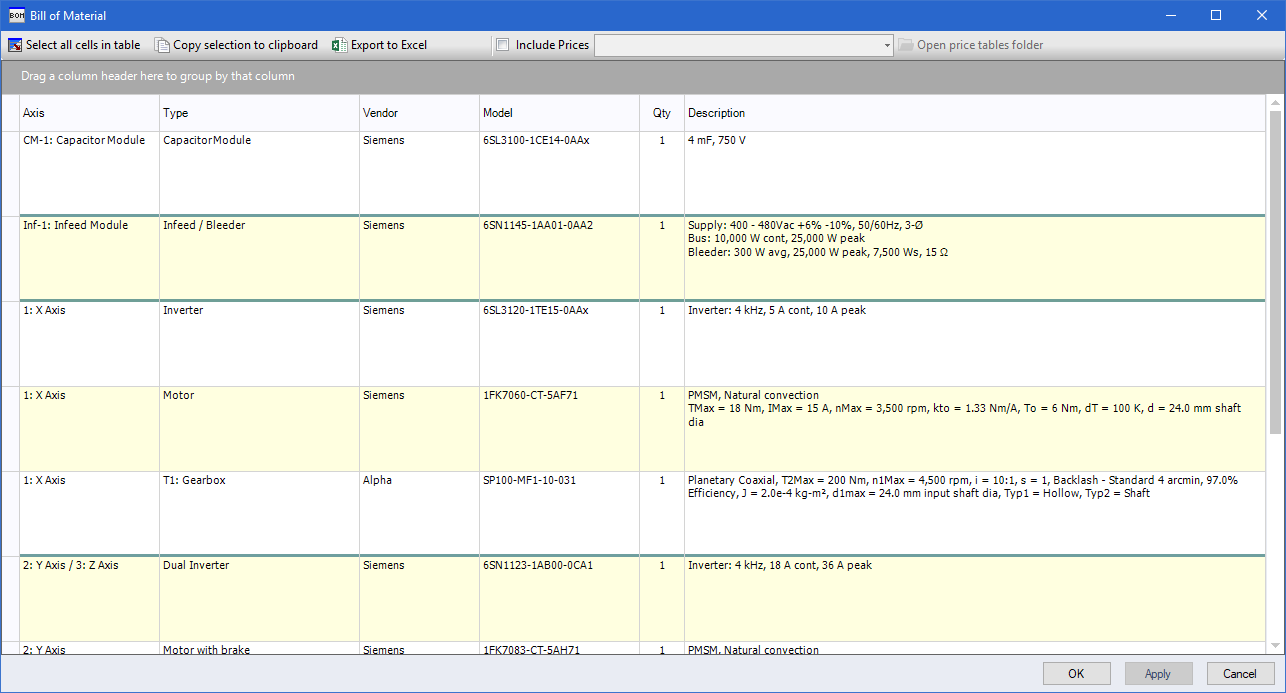
Create a Bill of Material (BOM) by clicking on the BOM button on
the main form toolbar.
Select some or all of the cells in the table, then copy the
seletion to the Clipboard. Another option is export the entire Bill
of Material to a spreadsheet.
To add prices to the BOM:
- Enable the 'Include Prices' feature
- Make a copy of the spreadsheet template file provided in the
[PriceTables] folder, and enter your pricing data
- 'Point' to that pricing spreadsheet
| NOTES
|
- Prices are local to the spreadsheet, and are not saved in the
project file or database.
- Create a Print Report PDF, with the option to include pricing
in the BOM.
|
Enable the 'Include Prices' feature, then using the drop down
list, point to your spreadsheet in the Price Tables folder.

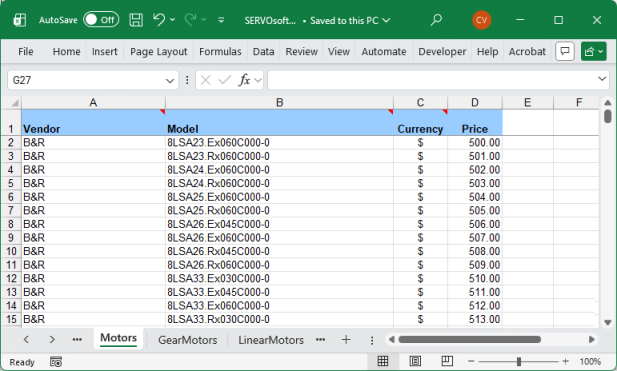
The spreadsheet template includes a worksheet for each product
category. Eg. Drives, Motors, Gearboxes, etc.
Simply fill in the Vendor, Model, Currency Symbol and Price for
each product, as shown.
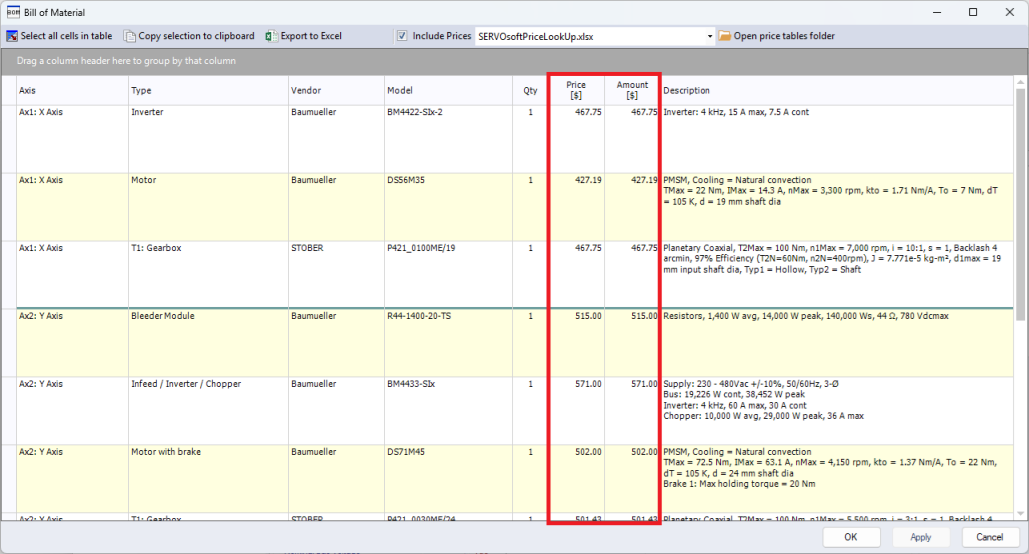
And then with the feature enabled, you get two extra columns -
Price & Amount. For any Vendor+Model match in the spreadsheet,
pricing is included in the BOM.
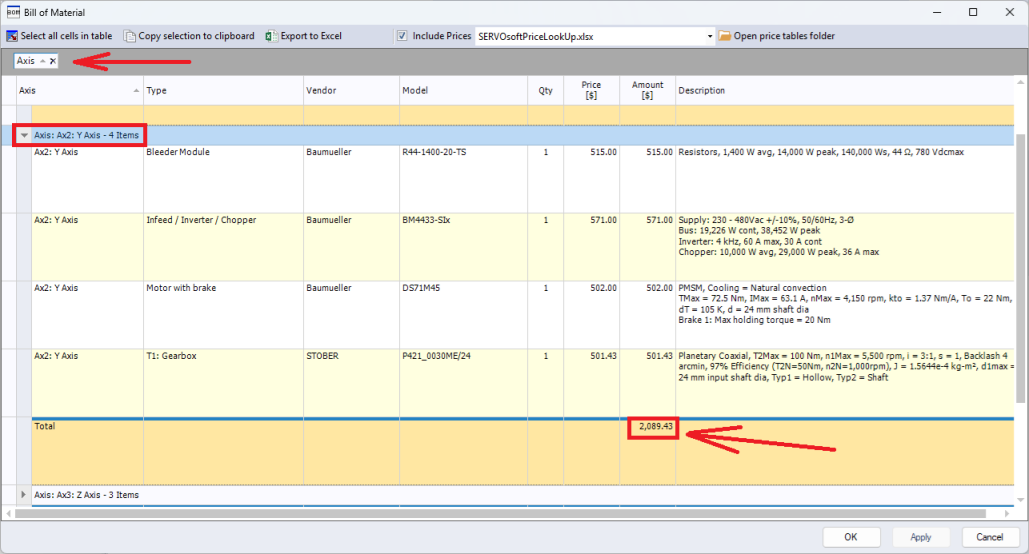
Group by any column to get the total cost, grouped by that column.
For example, group by the 'Axis' column and get the total price for
each axis as shown.
Another example is to group by say the 'Vendor' column to get
the total cost for each Vendors' products in the project.


 Include
Prices
Include
Prices